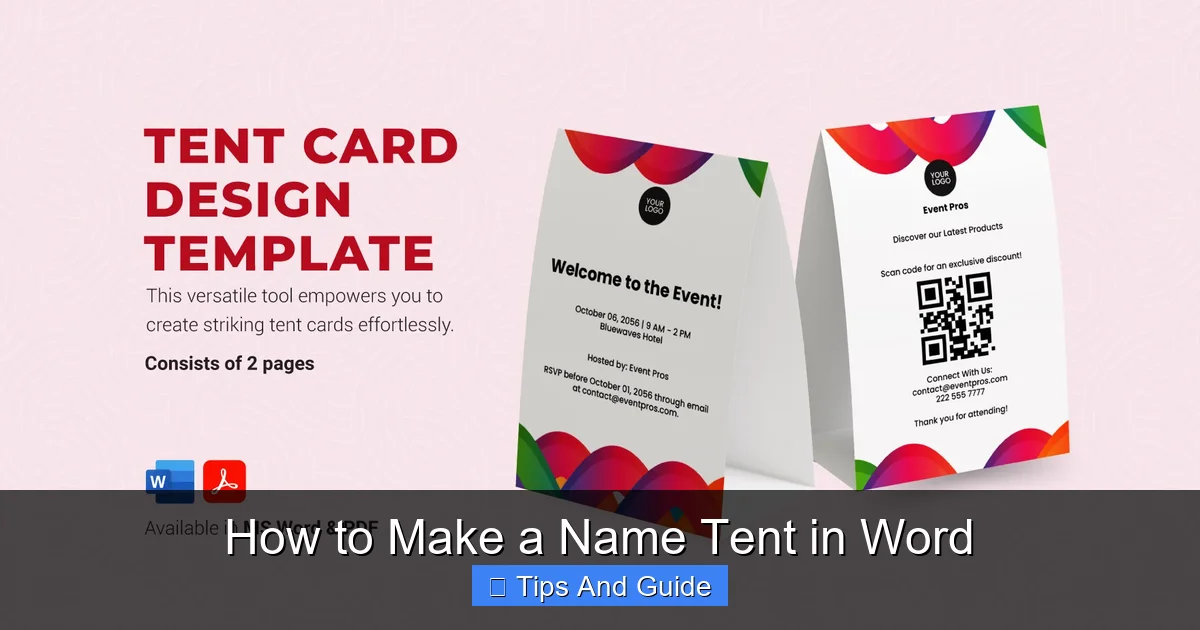
This guide provides a comprehensive walkthrough on how to create professional-looking name tents using Microsoft Word. You’ll learn everything from setting up your document to customizing fonts and colors for your specific needs. Whether for a conference, classroom, or a special event, mastering name tent creation in Word is a valuable skill. Follow these simple steps to design and print your own custom name tents quickly and easily.
# How to Make a Name Tent in Word
Creating professional and eye-catching name tents is a simple yet impactful way to enhance any event. Whether you’re organizing a conference, a classroom activity, a wedding reception, or even a family reunion, name tents help guests feel welcomed and can facilitate introductions. Thankfully, you don’t need complex design software to make them. Microsoft Word, a program many of us already have, is a powerful tool that can be used to design and print custom name tents with ease.
In this comprehensive guide, we’ll walk you through every step, from setting up your document to printing your finished name tents. We’ll cover different layout options, how to add personalization, and provide tips to ensure your name tents look polished and professional. By the end of this guide, you’ll be able to confidently create name tents for any occasion.
## Getting Started: Setting Up Your Word Document
The first step in creating your name tent is to set up your Word document correctly. This ensures that when you print and fold your paper, your name will be perfectly positioned. We’ll start with a standard letter-sized page and a basic layout that works well for most name tents.
### Choosing the Right Page Setup
A standard letter-sized page (8.5 x 11 inches) is ideal for printing name tents. We’ll be folding this page in half to create a freestanding tent.
1. **Open Microsoft Word:** Launch the application and start with a blank document.
2. **Set Margins:** For a clean look and to avoid printing too close to the edge, it’s good practice to set your margins.
* Go to the “Layout” tab.
* Click on “Margins.”
* Select “Narrow” margins (typically 0.5 inches on all sides). This gives you more space to work with. You can also choose “Custom Margins” if you prefer specific measurements.
3. **Set Page Orientation:** Name tents are typically printed on a landscape-oriented page so that the tent is wider than it is tall when folded.
* Go to the “Layout” tab.
* Click on “Orientation.”
* Select “Landscape.”
### Creating the Fold Line
To ensure your name tent folds correctly, it’s helpful to create a visual guide or an actual line on your document. This line will become the crease.
1. **Insert a Vertical Line:**
* Go to the “Insert” tab.
* Click on “Shapes.”
* Select the “Line” tool.
* Click and drag on your document to draw a vertical line down the center of your page. Since the page is landscape, this line will be positioned in the middle horizontally.
* To ensure it’s perfectly centered, you can use the alignment tools. Select the line, go to the “Shape Format” tab, click “Align,” then “Align Middle,” and then “Align Center.”
* **Tip:** You can make this line dashed or a very light color so it’s less noticeable on the final printout, or even delete it after you’ve used it as a guide for spacing. For a cleaner look, many people simply fold the paper in half visually without an explicit line.
### Designing Your Layout: Two Columns
We will divide the landscape page into two equal sections, representing the front and back panels of your name tent.
1. **Insert Text Boxes or Use Columns:** While you could simply type and align text, using text boxes or columns gives you more control. A common and effective method is to use two text boxes side-by-side, or to utilize Word’s column feature. For beginners, text boxes are often more intuitive.
* **Using Text Boxes (Recommended for beginners):**
* Go to the “Insert” tab.
* Click on “Text Box.”
* Select “Draw Text Box.”
* Draw a text box on the left half of your page. Make it a good size for your name and title.
* Go to the “Shape Format” tab.
* Under “Shape Styles,” you can choose a “Shape Fill” of “No Fill” and a “Shape Outline” of “No Outline” if you don’t want any visible borders.
* Now, copy and paste this text box to the right half of your page. You will need to adjust its position to align it with the first text box, creating two distinct panels.
* **Using Columns (More advanced):**
* Go to the “Layout” tab.
* Click on “Columns.”
* Select “Two.” This will divide your page into two columns. You will then need to carefully position your text within each column, possibly using paragraph spacing to create the “tent” effect when folded. For name tents, text boxes usually offer more precise control over placement and appearance.
## Adding Your Content: Names and Titles
Now that your document is set up, it’s time to add the essential content: the names and any associated titles or organizations.
### Entering the Name
This is the most prominent part of your name tent. Choose a clear and readable font.
1. **Type the Name:** Click inside your first text box (or the first column). Type the full name of the person.
2. **Choose a Font:**
* Highlight the name.
* Go to the “Home” tab.
* In the “Font” group, select a font that is easy to read from a distance. Sans-serif fonts like Arial, Calibri, or Helvetica are usually good choices for professional settings. Serif fonts like Times New Roman can also work but might appear more formal.
3. **Adjust Font Size:**
* With the name still highlighted, use the font size dropdown or type in a size. For a standard name tent, a size between 24 and 48 points is common, depending on the name’s length and the desired impact. You might need to experiment to find what looks best.
4. **Center the Text:**
* Ensure the name is centered within the text box or column for a balanced look.
* Go to the “Home” tab.
* In the “Paragraph” group, click the “Center” alignment button.
### Adding Titles or Organizations
Below the name, you might want to include a title, job role, or the organization the person represents.
1. **Type the Title:** Press “Enter” after typing the name to go to the next line within the same text box. Type the title or organization.
2. **Format the Title:**
* Highlight the title text.
* Choose a slightly smaller font size than the name (e.g., 14-20 points).
* You can use the same font or a complementary one.
* Center the text as you did for the name.
* You might want to use a different font weight (e.g., bold) or a slightly different color to distinguish it from the name.
### Duplicating for the Other Side
Once you are happy with the name and title on one side, you need to replicate it for the other side of the tent.
1. **Copy and Paste:**
* If you are using text boxes, select the text box containing the name and title.
* Copy it (Ctrl+C or Cmd+C).
* Paste it (Ctrl+V or Cmd+V) into the text box on the other side of your page.
* **Important:** You will need to edit the text in the second text box to reflect the correct name and title for the other side of the tent.
2. **Adjusting Text Direction (if needed):** Sometimes, when copying text boxes, the text might need to be adjusted so it reads correctly when the tent is folded. Usually, by placing one text box on the left and one on the right and typing normally, the fold will create the correct orientation for both sides. If you find text is upside down, you might need to go into the text box formatting options to rotate the text.
## Customizing Your Name Tents: Adding Flair
Beyond just names and titles, you can make your name tents more engaging and professional by adding custom elements.
### Colors and Fonts
Choosing the right colors and fonts can significantly impact the look and feel of your name tents.
* **Color Scheme:** Consider the event’s theme or the organization’s branding.
* You can change the text color by highlighting the text, going to the “Home” tab, and selecting a color from the “Font Color” dropdown.
* If you used text boxes and want to add a subtle background color to the panel, select the text box, go to “Shape Format,” and choose a “Shape Fill.” Use light, muted colors that won’t overpower the text.
* **Font Pairing:** While keeping it simple is often best, you can use two complementary fonts: one for the name and another for the title. Ensure both are highly readable.
### Adding Logos or Graphics
Logos can instantly add a professional touch, especially for corporate events or conferences.
1. **Insert Logo:**
* Go to the “Insert” tab.
* Click on “Pictures.”
* Browse and select your logo file.
2. **Positioning the Logo:**
* Once inserted, click on the logo to select it.
* Go to the “Picture Format” tab.
* Click on “Wrap Text” and choose “In Front of Text” or “Tight” so you can easily move the logo around.
* Resize the logo to fit appropriately on your name tent. It’s usually best placed above or below the name, or in a corner.
* **Tip:** For a clean look, consider adding the logo to only one side of the name tent, or a smaller version on both.
### Creating Multiple Name Tents Efficiently
If you have many name tents to create, doing them one by one can be tedious. Word offers features to speed this up.
* **Copying and Pasting Panels:** Once you have one panel designed (with name, title, and any graphics), you can copy and paste the entire design onto the other half of the page, and then duplicate the page for each additional name tent.
* **Using Mail Merge (Advanced):** For a large number of name tents with different names, Word’s Mail Merge feature is incredibly powerful. You’ll need a list of names and titles in an Excel spreadsheet or Word table.
1. Create your name tent template with placeholders for the name and title (e.g., <>, <>).<br />
2. Go to the “Mailings” tab.<br />
3. Click “Start Mail Merge” and choose “Labels” (even though you’re making tents, the label layout is useful for repeating elements).<br />
4. Select your recipients from your data source (e.g., your Excel file).<br />
5. Insert your merge fields (<<Name>>, <<Title>>) into the template.<br />
6. Update all labels. This will populate each name tent section with the correct information. You’ll then need to arrange these into tent format as described earlier. This is best done by creating the two panels of one tent, then duplicating that pair using Mail Merge.</p>
<p>## Printing Your Name Tents</p>
<p>Printing is the final step. Proper printing and folding are crucial for a professional finish.</p>
<p>### Printer Settings for Name Tents</p>
<p>Getting your printer settings right ensures your name tents print correctly without errors.</p>
<p>1. **Paper Size:** Make sure your printer is set to “Letter” (8.5 x 11 inches).<br />
2. **Print Quality:** Select a “High” or “Best” quality setting for crisp text and graphics.<br />
3. **Double-Sided Printing (Duplex Printing):** This is the most efficient way to print name tents.<br />
* Go to “File” > “Print.”<br />
* Look for the “Print One Sided” dropdown menu.<br />
* Select “Print on Both Sides.”<br />
* You might have options for how the pages are flipped: “Flip pages on long edge” or “Flip pages on short edge.” For name tents laid out side-by-side on a landscape page, you will likely want to **”Flip pages on long edge.”** This ensures that when you print the second side, it aligns correctly with the first side for folding.<br />
* **If your printer doesn’t support automatic duplex printing:** You will print the first side, then manually re-feed the paper to print the second side. Word will prompt you when to re-feed. Ensure you re-feed the paper in the correct orientation as per your printer’s instructions.<br />
4. **Preview Your Print:** Always use the “Print Preview” function in Word (“File” > “Print”) to check how your name tents will appear on the page before you hit the print button. This can save paper and ink.</p>
<p>### Folding and Finishing</p>
<p>Once printed, careful folding is key.</p>
<p>1. **Crease the Fold Line:** If you included a faint line, fold along it. If not, fold the page precisely in half down the middle (the longer side). Use your fingernail or a ruler to make a sharp crease.<br />
2. **Test the Fold:** Ensure the name on one side is facing outwards when the tent is standing, and the name on the other side is also facing outwards. The folded edge should be at the top.<br />
3. **Cut if Necessary:** If you are printing multiple name tents on a single sheet (e.g., 2 per page) and want them separated before folding, you can cut them apart carefully with a paper cutter or scissors after printing.</p>
<p>## Troubleshooting Common Issues</p>
<p>Even with careful planning, you might encounter a few hiccups. Here are solutions to common problems.</p>
<p>* **Text is Cut Off:** This usually means your margins are too small, or you are printing too close to the edge of the page.<br />
* **Solution:** Adjust margins to be wider, or resize text and elements to fit within the printable area. Check your printer’s “safe area” settings if available.<br />
* **Names are Upside Down:** This is a common issue with double-sided printing.<br />
* **Solution:** Revisit your printer’s duplex settings. For landscape pages with content side-by-side, “Flip pages on long edge” is usually correct. If that doesn’t work, try the other option or consider printing one side at a time and manually feeding the paper carefully.<br />
* **Tents Won’t Stand Up:** The crease might not be sharp enough, or the paper might be too flimsy.<br />
* **Solution:** Make your folds sharper. Use slightly heavier cardstock paper (around 65-90 lb cover weight) for more rigid tents.<br />
* **Logos or Images Are Blurry:** The original image file might be low resolution.<br />
* **Solution:** Use high-resolution image files for your logos. If you can’t, ensure the image is not scaled up too large, as this can also cause blurriness.<br />
* **Uneven Spacing:** Text or elements are not aligned properly.<br />
* **Solution:** Use Word’s alignment tools (found in the “Shape Format” tab for text boxes and images, and the “Home” tab for text) and guides carefully. Ensure text boxes are snapped to the center of your page halves.</p>
<p>## Conclusion</p>
<p>Creating professional name tents in Microsoft Word is an achievable and valuable skill. By following these step-by-step instructions, you can design name tents that are not only functional but also visually appealing and tailored to your specific event. From setting up your document with the correct orientation and margins to carefully placing names, titles, and even logos, each step contributes to a polished final product. Remember to pay attention to your printing settings, especially for double-sided printing, and don’t be afraid to experiment with different fonts and colors to achieve the desired effect.</p>
<p>Whether for a large corporate event or a small classroom gathering, well-made name tents can significantly improve the experience for everyone involved. So, the next time you need to organize an event that requires personalized identification, you’ll know exactly how to create them yourself using the tools you already have. Happy designing and happy folding!</p>
<ul>
<li><strong>Easy Setup:</strong> Learn how to configure your Word document for optimal name tent layout, ensuring correct folding and printing.</li>
<li><strong>Design Flexibility:</strong> Discover how to personalize your name tents with custom fonts, sizes, colors, and even add logos or graphics.</li>
<li><strong>Efficient Printing:</strong> Get practical advice on printing your name tents accurately, including double-sided printing tips and layout optimization.</li>
<li><strong>Versatile Application:</strong> Understand how name tents can be used for a variety of purposes, from formal events to casual gatherings.</li>
<li><strong>Troubleshooting Tips:</strong> Find solutions to common issues that might arise during the design and printing process.</li>
</ul>
</div>
</div>
</article>
<div class="post-share-bot">
<span class="info">Share.</span>
<span class="share-links spc-social spc-social-colors spc-social-bg">
<a href="https://www.facebook.com/sharer.php?u=https%3A%2F%2Ftentrm.com%2Fhow-to-make-a-name-tent-in-word%2F" class="service s-facebook tsi tsi-facebook"
title="Share on Facebook" target="_blank" rel="nofollow noopener">
<span class="visuallyhidden">Facebook</span>
</a>
<a href="https://twitter.com/intent/tweet?url=https%3A%2F%2Ftentrm.com%2Fhow-to-make-a-name-tent-in-word%2F&text=How%20to%20Make%20a%20Name%20Tent%20in%20Word" class="service s-twitter tsi tsi-twitter"
title="Share on X (Twitter)" target="_blank" rel="nofollow noopener">
<span class="visuallyhidden">Twitter</span>
</a>
<a href="https://pinterest.com/pin/create/button/?url=https%3A%2F%2Ftentrm.com%2Fhow-to-make-a-name-tent-in-word%2F&media=https%3A%2F%2Ftentrm.com%2Fwp-content%2Fuploads%2F2026%2F02%2Fhow-to-make-a-name-tent-in-word-0.webp&description=How%20to%20Make%20a%20Name%20Tent%20in%20Word" class="service s-pinterest tsi tsi-pinterest"
title="Share on Pinterest" target="_blank" rel="nofollow noopener">
<span class="visuallyhidden">Pinterest</span>
</a>
<a href="https://www.linkedin.com/shareArticle?mini=true&url=https%3A%2F%2Ftentrm.com%2Fhow-to-make-a-name-tent-in-word%2F" class="service s-linkedin tsi tsi-linkedin"
title="Share on LinkedIn" target="_blank" rel="nofollow noopener">
<span class="visuallyhidden">LinkedIn</span>
</a>
<a href="https://www.tumblr.com/share/link?url=https%3A%2F%2Ftentrm.com%2Fhow-to-make-a-name-tent-in-word%2F&name=How%20to%20Make%20a%20Name%20Tent%20in%20Word" class="service s-tumblr tsi tsi-tumblr"
title="Share on Tumblr" target="_blank" rel="nofollow noopener">
<span class="visuallyhidden">Tumblr</span>
</a>
<a href="mailto:?subject=How%20to%20Make%20a%20Name%20Tent%20in%20Word&body=https%3A%2F%2Ftentrm.com%2Fhow-to-make-a-name-tent-in-word%2F" class="service s-email tsi tsi-envelope-o"
title="Share via Email" target="_blank" rel="nofollow noopener">
<span class="visuallyhidden">Email</span>
</a>
</span>
</div>
<div class="author-box">
<section class="author-info">
<img alt='' src='https://secure.gravatar.com/avatar/5235231e29bd563627712f4291bed596bea32e53d163e1bfba1fa2b5fd8dc626?s=95&d=mm&r=g' srcset='https://secure.gravatar.com/avatar/5235231e29bd563627712f4291bed596bea32e53d163e1bfba1fa2b5fd8dc626?s=190&d=mm&r=g 2x' class='avatar avatar-95 photo' height='95' width='95' decoding='async'/>
<div class="description">
<a href="https://tentrm.com/author/chris/" title="Posts by Chris Nolan" rel="author">Chris Nolan</a>
<ul class="social-icons">
</ul>
<p class="bio"></p>
</div>
</section> </div>
<section class="related-posts">
<div class="block-head block-head-ac block-head-a block-head-a1 is-left">
<h4 class="heading">Related <span class="color">Posts</span></h4>
</div>
<section class="block-wrap block-grid cols-gap-sm mb-none" data-id="1">
<div class="block-content">
<div class="loop loop-grid loop-grid-sm grid grid-3 md:grid-2 xs:grid-1">
<article class="l-post grid-post grid-sm-post">
<div class="media">
<a href="https://tentrm.com/best-way-to-keep-your-tent-cool/" class="image-link media-ratio ratio-16-9" title="Best Way to Keep Your Tent Cool"><span data-bgsrc="https://tentrm.com/wp-content/uploads/2026/03/best-way-to-keep-your-tent-cool-0-450x236.webp" class="img bg-cover wp-post-image attachment-bunyad-medium size-bunyad-medium lazyload" data-bgset="https://tentrm.com/wp-content/uploads/2026/03/best-way-to-keep-your-tent-cool-0-450x236.webp 450w, https://tentrm.com/wp-content/uploads/2026/03/best-way-to-keep-your-tent-cool-0-300x158.webp 300w, https://tentrm.com/wp-content/uploads/2026/03/best-way-to-keep-your-tent-cool-0-1024x538.webp 1024w, https://tentrm.com/wp-content/uploads/2026/03/best-way-to-keep-your-tent-cool-0-768x403.webp 768w, https://tentrm.com/wp-content/uploads/2026/03/best-way-to-keep-your-tent-cool-0-150x79.webp 150w, https://tentrm.com/wp-content/uploads/2026/03/best-way-to-keep-your-tent-cool-0.webp 1200w" data-sizes="(max-width: 377px) 100vw, 377px" role="img" aria-label="Best Way to Keep Your Tent Cool"></span></a>
</div>
<div class="content">
<div class="post-meta post-meta-a has-below"><h4 class="is-title post-title"><a href="https://tentrm.com/best-way-to-keep-your-tent-cool/">Best Way to Keep Your Tent Cool</a></h4><div class="post-meta-items meta-below"><span class="meta-item date"><span class="date-link"><time class="post-date" datetime="2026-04-11T16:02:00+00:00">April 11, 2026</time></span></span></div></div>
</div>
</article>
<article class="l-post grid-post grid-sm-post">
<div class="media">
<a href="https://tentrm.com/best-way-to-keep-warm-in-a-tent/" class="image-link media-ratio ratio-16-9" title="Best Way to Keep Warm in a Tent"><span data-bgsrc="https://tentrm.com/wp-content/uploads/2026/03/best-way-to-keep-warm-in-a-tent-0-450x236.webp" class="img bg-cover wp-post-image attachment-bunyad-medium size-bunyad-medium lazyload" data-bgset="https://tentrm.com/wp-content/uploads/2026/03/best-way-to-keep-warm-in-a-tent-0-450x236.webp 450w, https://tentrm.com/wp-content/uploads/2026/03/best-way-to-keep-warm-in-a-tent-0-300x158.webp 300w, https://tentrm.com/wp-content/uploads/2026/03/best-way-to-keep-warm-in-a-tent-0-1024x538.webp 1024w, https://tentrm.com/wp-content/uploads/2026/03/best-way-to-keep-warm-in-a-tent-0-768x403.webp 768w, https://tentrm.com/wp-content/uploads/2026/03/best-way-to-keep-warm-in-a-tent-0-150x79.webp 150w, https://tentrm.com/wp-content/uploads/2026/03/best-way-to-keep-warm-in-a-tent-0.webp 1200w" data-sizes="(max-width: 377px) 100vw, 377px" role="img" aria-label="Best Way to Keep Warm in a Tent"></span></a>
</div>
<div class="content">
<div class="post-meta post-meta-a has-below"><h4 class="is-title post-title"><a href="https://tentrm.com/best-way-to-keep-warm-in-a-tent/">Best Way to Keep Warm in a Tent</a></h4><div class="post-meta-items meta-below"><span class="meta-item date"><span class="date-link"><time class="post-date" datetime="2026-04-11T14:02:30+00:00">April 11, 2026</time></span></span></div></div>
</div>
</article>
<article class="l-post grid-post grid-sm-post">
<div class="media">
<a href="https://tentrm.com/best-way-to-keep-tent-warm-in-winter/" class="image-link media-ratio ratio-16-9" title="Best Way to Keep Tent Warm in Winter"><span data-bgsrc="https://tentrm.com/wp-content/uploads/2026/03/best-way-to-keep-tent-warm-in-winter-0-450x236.webp" class="img bg-cover wp-post-image attachment-bunyad-medium size-bunyad-medium lazyload" data-bgset="https://tentrm.com/wp-content/uploads/2026/03/best-way-to-keep-tent-warm-in-winter-0-450x236.webp 450w, https://tentrm.com/wp-content/uploads/2026/03/best-way-to-keep-tent-warm-in-winter-0-300x158.webp 300w, https://tentrm.com/wp-content/uploads/2026/03/best-way-to-keep-tent-warm-in-winter-0-1024x538.webp 1024w, https://tentrm.com/wp-content/uploads/2026/03/best-way-to-keep-tent-warm-in-winter-0-768x403.webp 768w, https://tentrm.com/wp-content/uploads/2026/03/best-way-to-keep-tent-warm-in-winter-0-150x79.webp 150w, https://tentrm.com/wp-content/uploads/2026/03/best-way-to-keep-tent-warm-in-winter-0.webp 1200w" data-sizes="(max-width: 377px) 100vw, 377px" role="img" aria-label="Best Way to Keep Tent Warm in Winter"></span></a>
</div>
<div class="content">
<div class="post-meta post-meta-a has-below"><h4 class="is-title post-title"><a href="https://tentrm.com/best-way-to-keep-tent-warm-in-winter/">Best Way to Keep Tent Warm in Winter</a></h4><div class="post-meta-items meta-below"><span class="meta-item date"><span class="date-link"><time class="post-date" datetime="2026-04-11T12:03:00+00:00">April 11, 2026</time></span></span></div></div>
</div>
</article>
</div>
</div>
</section>
</section>
<div class="comments">
<div id="comments">
<div class="comments-area ">
<p class="nocomments">Comments are closed.</p>
</div>
</div><!-- #comments -->
</div>
</div>
</div>
<aside class="col-4 main-sidebar has-sep" data-sticky="1">
<div class="inner theiaStickySidebar">
</div>
</aside>
</div>
</div>
<footer class="main-footer cols-gap-lg footer-bold s-dark">
<div class="lower-footer bold-footer-lower">
<div class="ts-contain inner">
<div class="spc-social-block spc-social spc-social-b ">
<a href="#" class="link service s-facebook" target="_blank" rel="nofollow noopener">
<i class="icon tsi tsi-facebook"></i> <span class="visuallyhidden">Facebook</span>
</a>
<a href="#" class="link service s-twitter" target="_blank" rel="nofollow noopener">
<i class="icon tsi tsi-twitter"></i> <span class="visuallyhidden">X (Twitter)</span>
</a>
<a href="#" class="link service s-instagram" target="_blank" rel="nofollow noopener">
<i class="icon tsi tsi-instagram"></i> <span class="visuallyhidden">Instagram</span>
</a>
<a href="#" class="link service s-pinterest" target="_blank" rel="nofollow noopener">
<i class="icon tsi tsi-pinterest-p"></i> <span class="visuallyhidden">Pinterest</span>
</a>
</div>
<div class="copyright">
© 2026 ThemeSphere. Designed by <a href="https://theme-sphere.com">ThemeSphere</a>. </div>
</div>
</div>
</footer>
</div><!-- .main-wrap -->
<div class="search-modal-wrap" data-scheme="dark">
<div class="search-modal-box" role="dialog" aria-modal="true">
<form method="get" class="search-form" action="https://tentrm.com/">
<input type="search" class="search-field live-search-query" name="s" placeholder="Search..." value="" required />
<button type="submit" class="search-submit visuallyhidden">Submit</button>
<p class="message">
Type above and press <em>Enter</em> to search. Press <em>Esc</em> to cancel. </p>
</form>
</div>
</div>
<script type="speculationrules">
{"prefetch":[{"source":"document","where":{"and":[{"href_matches":"/*"},{"not":{"href_matches":["/wp-*.php","/wp-admin/*","/wp-content/uploads/*","/wp-content/*","/wp-content/plugins/*","/wp-content/themes/smart-mag/*","/*\\?(.+)"]}},{"not":{"selector_matches":"a[rel~=\"nofollow\"]"}},{"not":{"selector_matches":".no-prefetch, .no-prefetch a"}}]},"eagerness":"conservative"}]}
</script>
<script type="application/ld+json">{"@context":"http:\/\/schema.org","@type":"Article","headline":"How to Make a Name Tent in Word","url":"https:\/\/tentrm.com\/how-to-make-a-name-tent-in-word\/","image":{"@type":"ImageObject","url":"https:\/\/tentrm.com\/wp-content\/uploads\/2026\/02\/how-to-make-a-name-tent-in-word-0.webp","width":1200,"height":630},"datePublished":"2026-02-27T02:12:16+00:00","dateModified":"2026-02-27T02:12:16+00:00","author":{"@type":"Person","name":"Chris Nolan","url":"https:\/\/tentrm.com\/author\/chris\/"},"publisher":{"@type":"Organization","name":"tentrm.com","sameAs":"https:\/\/tentrm.com"},"mainEntityOfPage":{"@type":"WebPage","@id":"https:\/\/tentrm.com\/how-to-make-a-name-tent-in-word\/"}}</script>
<script>
const lazyloadRunObserver = () => {
const lazyloadBackgrounds = document.querySelectorAll( `.e-con.e-parent:not(.e-lazyloaded)` );
const lazyloadBackgroundObserver = new IntersectionObserver( ( entries ) => {
entries.forEach( ( entry ) => {
if ( entry.isIntersecting ) {
let lazyloadBackground = entry.target;
if( lazyloadBackground ) {
lazyloadBackground.classList.add( 'e-lazyloaded' );
}
lazyloadBackgroundObserver.unobserve( entry.target );
}
});
}, { rootMargin: '200px 0px 200px 0px' } );
lazyloadBackgrounds.forEach( ( lazyloadBackground ) => {
lazyloadBackgroundObserver.observe( lazyloadBackground );
} );
};
const events = [
'DOMContentLoaded',
'elementor/lazyload/observe',
];
events.forEach( ( event ) => {
document.addEventListener( event, lazyloadRunObserver );
} );
</script>
<script type="application/ld+json">{"@context":"https:\/\/schema.org","@type":"BreadcrumbList","itemListElement":[{"@type":"ListItem","position":1,"item":{"@type":"WebPage","@id":"https:\/\/tentrm.com\/","name":"Home"}},{"@type":"ListItem","position":2,"item":{"@type":"WebPage","@id":"https:\/\/tentrm.com\/category\/tips-guide\/","name":"Tips and Guide"}},{"@type":"ListItem","position":3,"item":{"@type":"WebPage","@id":"https:\/\/tentrm.com\/how-to-make-a-name-tent-in-word\/","name":"How to Make a Name Tent in Word"}}]}</script>
<script type="text/javascript" id="smartmag-lazyload-js-extra">
/* <![CDATA[ */
var BunyadLazyConf = {"type":"normal"};
//# sourceURL=smartmag-lazyload-js-extra
/* ]]> */
</script>
<script type="text/javascript" src="https://tentrm.com/wp-content/themes/smart-mag/js/lazyload.js?ver=10.3.2" id="smartmag-lazyload-js"></script>
<script type="text/javascript" src="https://tentrm.com/wp-content/themes/smart-mag/js/jquery.mfp-lightbox.js?ver=10.3.2" id="magnific-popup-js"></script>
<script type="text/javascript" src="https://tentrm.com/wp-content/themes/smart-mag/js/jquery.sticky-sidebar.js?ver=10.3.2" id="theia-sticky-sidebar-js"></script>
<script type="text/javascript" id="smartmag-theme-js-extra">
/* <![CDATA[ */
var Bunyad = {"ajaxurl":"https://tentrm.com/wp-admin/admin-ajax.php"};
//# sourceURL=smartmag-theme-js-extra
/* ]]> */
</script>
<script type="text/javascript" src="https://tentrm.com/wp-content/themes/smart-mag/js/theme.js?ver=10.3.2" id="smartmag-theme-js"></script>
<script type="text/javascript" src="https://tentrm.com/wp-content/themes/smart-mag/js/float-share.js?ver=10.3.2" id="smartmag-float-share-js"></script>
<script id="wp-emoji-settings" type="application/json">
{"baseUrl":"https://s.w.org/images/core/emoji/17.0.2/72x72/","ext":".png","svgUrl":"https://s.w.org/images/core/emoji/17.0.2/svg/","svgExt":".svg","source":{"concatemoji":"https://tentrm.com/wp-includes/js/wp-emoji-release.min.js?ver=6.9.4"}}
</script>
<script type="module">
/* <![CDATA[ */
/*! This file is auto-generated */
const a=JSON.parse(document.getElementById("wp-emoji-settings").textContent),o=(window._wpemojiSettings=a,"wpEmojiSettingsSupports"),s=["flag","emoji"];function i(e){try{var t={supportTests:e,timestamp:(new Date).valueOf()};sessionStorage.setItem(o,JSON.stringify(t))}catch(e){}}function c(e,t,n){e.clearRect(0,0,e.canvas.width,e.canvas.height),e.fillText(t,0,0);t=new Uint32Array(e.getImageData(0,0,e.canvas.width,e.canvas.height).data);e.clearRect(0,0,e.canvas.width,e.canvas.height),e.fillText(n,0,0);const a=new Uint32Array(e.getImageData(0,0,e.canvas.width,e.canvas.height).data);return t.every((e,t)=>e===a[t])}function p(e,t){e.clearRect(0,0,e.canvas.width,e.canvas.height),e.fillText(t,0,0);var n=e.getImageData(16,16,1,1);for(let e=0;e<n.data.length;e++)if(0!==n.data[e])return!1;return!0}function u(e,t,n,a){switch(t){case"flag":return n(e,"\ud83c\udff3\ufe0f\u200d\u26a7\ufe0f","\ud83c\udff3\ufe0f\u200b\u26a7\ufe0f")?!1:!n(e,"\ud83c\udde8\ud83c\uddf6","\ud83c\udde8\u200b\ud83c\uddf6")&&!n(e,"\ud83c\udff4\udb40\udc67\udb40\udc62\udb40\udc65\udb40\udc6e\udb40\udc67\udb40\udc7f","\ud83c\udff4\u200b\udb40\udc67\u200b\udb40\udc62\u200b\udb40\udc65\u200b\udb40\udc6e\u200b\udb40\udc67\u200b\udb40\udc7f");case"emoji":return!a(e,"\ud83e\u1fac8")}return!1}function f(e,t,n,a){let r;const o=(r="undefined"!=typeof WorkerGlobalScope&&self instanceof WorkerGlobalScope?new OffscreenCanvas(300,150):document.createElement("canvas")).getContext("2d",{willReadFrequently:!0}),s=(o.textBaseline="top",o.font="600 32px Arial",{});return e.forEach(e=>{s[e]=t(o,e,n,a)}),s}function r(e){var t=document.createElement("script");t.src=e,t.defer=!0,document.head.appendChild(t)}a.supports={everything:!0,everythingExceptFlag:!0},new Promise(t=>{let n=function(){try{var e=JSON.parse(sessionStorage.getItem(o));if("object"==typeof e&&"number"==typeof e.timestamp&&(new Date).valueOf()<e.timestamp+604800&&"object"==typeof e.supportTests)return e.supportTests}catch(e){}return null}();if(!n){if("undefined"!=typeof Worker&&"undefined"!=typeof OffscreenCanvas&&"undefined"!=typeof URL&&URL.createObjectURL&&"undefined"!=typeof Blob)try{var e="postMessage("+f.toString()+"("+[JSON.stringify(s),u.toString(),c.toString(),p.toString()].join(",")+"));",a=new Blob([e],{type:"text/javascript"});const r=new Worker(URL.createObjectURL(a),{name:"wpTestEmojiSupports"});return void(r.onmessage=e=>{i(n=e.data),r.terminate(),t(n)})}catch(e){}i(n=f(s,u,c,p))}t(n)}).then(e=>{for(const n in e)a.supports[n]=e[n],a.supports.everything=a.supports.everything&&a.supports[n],"flag"!==n&&(a.supports.everythingExceptFlag=a.supports.everythingExceptFlag&&a.supports[n]);var t;a.supports.everythingExceptFlag=a.supports.everythingExceptFlag&&!a.supports.flag,a.supports.everything||((t=a.source||{}).concatemoji?r(t.concatemoji):t.wpemoji&&t.twemoji&&(r(t.twemoji),r(t.wpemoji)))});
//# sourceURL=https://tentrm.com/wp-includes/js/wp-emoji-loader.min.js
/* ]]> */
</script>
</body>
</html>
<!-- Page cached by LiteSpeed Cache 7.8.0.1 on 2026-04-11 17:16:35 -->