How to Make Table Tents in Word
This guide will walk you through the simple process of creating professional table tents using Microsoft Word. You’ll learn how to design eye-catching layouts, add text and graphics, and prepare them for printing. Master the art of DIY table tents and make your next event or business promotion stand out!
# How to Make Table Tents in Word
Table tents are a fantastic way to display information at events, in restaurants, or for any business promotion. They sit upright on tables, making them visible from multiple angles. Making them yourself in Microsoft Word can save you money and give you complete creative freedom. This guide will show you exactly how to create professional-looking table tents from start to finish.
You might be thinking, “Can I really make something that looks good in Word?” The answer is a resounding yes! With a few simple steps and some attention to detail, you can design eye-catching table tents that will impress your audience. Whether you need them for a special event, to highlight daily specials at your cafe, or to provide important information at a conference, this tutorial has you covered. We’ll cover everything from setting up your document to getting them ready for the printer.
## Understanding Table Tent Basics
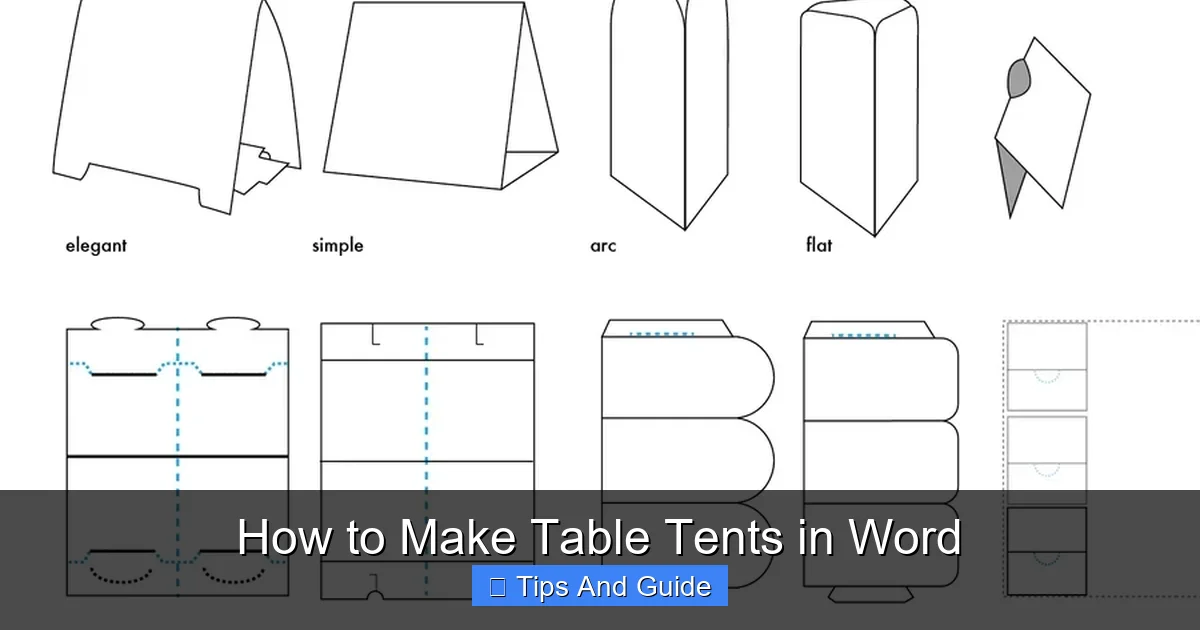
Before we dive into Word, let’s understand what makes a good table tent. Most standard table tents are designed to be printed on a single sheet of paper, folded in half, and then usually secured in the middle. This creates a stable, three-dimensional display. The most common type is the triangular prism shape.
When you’re designing, you’ll essentially be working with a flat layout that will be folded. This means your design needs to account for both sides of the tent and the fold line. Typically, a table tent is designed to be viewed from the front. The back might have additional information or a different design element.
## Step 1: Setting Up Your Document in Word
The first and most crucial step is to get your Word document set up correctly. This ensures your design will print as you intend it to.
### Setting the Page Size
Most standard table tents are created from a letter-sized (8.5 x 11 inches) or A4 paper. We’ll assume you’re using letter-sized paper for this guide.
1. Open Microsoft Word.
2. Go to the “Layout” tab.
3. In the “Page Setup” group, click on “Size”.
4. Select “Letter (8.5″ x 11″)”.
### Adjusting Margins
It’s important to leave some space around the edges of your page for margins. This prevents text and important design elements from being too close to the edge, which can look messy and may even get cut off during printing or folding.
1. On the “Layout” tab, click on “Margins” in the “Page Setup” group.
2. Choose “Narrow”. This sets your margins to about 0.5 inches on all sides. You can also choose “Custom Margins” if you need more specific control. For table tents, 0.5 inches is usually a good starting point.
### Setting Up Columns for Folding
To easily visualize how your table tent will fold, it’s helpful to set up your page using columns. This will divide your page into sections that represent the panels of your table tent. For a standard triangular table tent, you’ll need three panels: two for the sides and one for the base that folds underneath.
1. On the “Layout” tab, click on “Columns” in the “Page Setup” group.
2. Select “Two”. This will divide your page into two equal columns.
Now, your page will look like it has two columns. Imagine your table tent is laid out flat. You’ll have a front panel, a back panel, and a base panel. With two columns, you’ll typically place your front and back panels side-by-side, and the base will be created by folding. Let’s adjust this slightly to make it more intuitive for a typical tri-fold table tent.
A common way to design is to have the entire flat layout within one column, and then draw lines to indicate the folds. However, for a simple triangular tent printed on half a letter page, we’ll set it up differently.
Let’s rethink the column setup for a standard table tent. Many table tents are printed on half a letter page and folded into a triangle. This means the final tent is about 4.25 inches wide. So, let’s set up our document to reflect that.
1. On the “Layout” tab, click on “Size” and select “Half Letter (5.5″ x 8.5″)”. This is often a more efficient way to print multiple tents on a single letter page.
2. Now, go to “Columns” and select “Two”. This will give you two panels, each 4.25 inches wide, on your 8.5 x 11 inch page. You’ll design your table tent across these two columns.
Alternatively, and perhaps simpler for beginners, is to work on a full letter page and create your design across it, then cut and fold. We’ll proceed with this method for maximum clarity, designing one full flat pattern on the 8.5×11 page.
1. Keep your page size as “Letter (8.5″ x 11″)”.
2. On the “Layout” tab, click “Margins” and select “Narrow”.
3. Now, go to “Columns” and select “Three”. This will divide your page into three equal sections. Each section will be roughly 2.83 inches wide. This setup is ideal for a tent that folds into three panels.
Think of these three columns as the panels you’ll be folding. The middle column will be the front panel, one outer column will be the back panel, and the other outer column will be the base that tucks in.
## Step 2: Designing Your Table Tent Layout
With your document set up, it’s time to bring your table tent to life.
### Adding Text Boxes and Shapes
Word’s Text Boxes are your best friend for placing text precisely where you want it. Shapes can also be useful for creating backgrounds or decorative elements.
1. Go to the “Insert” tab.
2. Click on “Text Box”. You can choose “Draw Text Box” to create one manually.
3. Draw a text box in one of your columns.
4. Type your content into the text box.
5. To format the text, select the text, and use the options in the “Home” tab (font, size, color, alignment).
6. To make the text box stand out or fit your design, right-click the text box border and select “Format Shape”. You can adjust fill color, line color, and line style. For table tents, you’ll often want to remove the border (line color: No Line).
### Incorporating Images and Graphics
A good table tent often includes visuals.
1. Go to the “Insert” tab.
2. Click on “Pictures”. You can choose “This Device”, “Stock Images”, or “Online Pictures”.
3. Select your image and click “Insert”.
4. Once the image is on your page, you’ll see “Picture Format” tools appear.
5. Under “Arrange”, click “Wrap Text”. For most uses, “In Front of Text” or “Tight” allows you to position the image anywhere on the page.
6. Resize and position your images as needed.
Tip: For a professional look, use high-resolution images. Low-resolution images will appear pixelated when printed.
### Adding Fold Lines (Optional but Recommended)
While the columns give you a guide, adding actual lines can make the folding process clearer.
1. Go to the “Insert” tab.
2. Click on “Shapes”.
3. Select the “Line” shape.
4. Draw a line down the center of your page, between the columns.
5. Use the “Shape Format” tab to adjust the line’s color (e.g., a light gray or dashed line) and weight.
You’ll want a fold line down the middle of your design, separating the left panel from the middle panel, and another line separating the middle panel from the right panel.
Let’s refine the layout for a common triangular table tent. Imagine the paper laid flat.
* Left Column: This will be the back of your table tent.
* Middle Column: This will be the front of your table tent.
* Right Column: This will be the base that tucks in or folds under.
So, you’ll have your main message and design on the middle column (front). The left column (back) might have a logo, website, or additional details. The right column (base) is often left blank or has a simple color, as it’s not directly visible.
Example Layout for a Restaurant Menu Tent:
* Left Panel (Back): Restaurant Logo, Website, Social Media Handles.
* Middle Panel (Front): “Today’s Specials,” Main title, key promotional text.
* Right Panel (Base): Often left blank or a simple color, folded under.
When you fold, you’ll bring the left and middle panels together, and the right panel will tuck in to create the triangle.
## Step 3: Designing for Print
This is where you ensure your table tent looks fantastic once printed and folded.
### Bleed and Margins for Printing
Printers often require a “bleed.” This is an extra area of your design that extends beyond the trim edge of the page. It ensures that when the paper is cut, there’s no white sliver left if the cut is slightly off.
In Word, achieving a true bleed can be a bit tricky compared to professional design software. However, you can simulate it by extending your background colors or images slightly beyond the column guides or your intended cut lines.
* What to do: If you have a background color or image that should go to the edge of a panel, extend it about 0.125 inches (1/8 inch) past where the fold or cut line would be.
* Trim Lines: It’s also helpful to add light, dashed lines where the paper will be cut. You can do this using the line tool as described earlier.
### Adding Content Strategically
* Front Panel (Middle Column): This is your prime real estate. Make your message clear, concise, and visually appealing. Use a large, readable font for headlines.
* Back Panel (Left Column): Use this for secondary information. Don’t overcrowd it.
* Base Panel (Right Column): This panel is structural. Keep it simple.
Example: For an event table tent, the front might have the event name, date, and time. The back could list sponsors or a brief agenda.
## Step 4: Saving and Printing Your Table Tents
Once your design is complete, you need to save it correctly and prepare for printing.
### Saving Your Document
1. Go to “File” > “Save As”.
2. Choose a location to save your file.
3. Give your file a descriptive name (e.g., “RestaurantMenuTableTent_v1”).
4. For maximum compatibility and to preserve your formatting, save a copy as a PDF. Go to “File” > “Save As”, and in the “Save as type” dropdown, select “PDF (*.pdf)”. This is the preferred format for printing.
### Printing Your Table Tents
You have a few options for printing:
1. Print at Home:
* Ensure your printer is set to print at 100% scale or “Actual Size.” Do NOT select “Fit to Page” unless you are specifically trying to enlarge or shrink the design.
* Print on sturdy paper or cardstock. The weight of the paper will determine how well the tent stands up. Look for paper in the 65 lb to 110 lb range.
* If printing multiple tents on one page, you might want to print a test page on plain paper first to check alignment and colors.
2. Professional Printing Service:
* Take your PDF file to a local print shop or an online printing service.
* Specify the type of paper (cardstock, weight) and finish you prefer.
* They can often handle the bleed and trim requirements more professionally than you can at home.
## Step 5: Cutting and Folding Your Table Tents
This is the final physical step to turn your flat design into a table tent.
### Cutting
If printing at home, you’ll need to cut out your table tents.
1. Use a Straight Edge and Craft Knife/Rotary Cutter: This is the most precise method. Line up a ruler along your fold/cut lines and carefully cut.
2. Use a Paper Trimmer: If you have one, this is a quick and accurate way to get clean cuts.
3. Use Scissors: This is the most accessible method but can be less precise. Try to cut as straight as possible.
### Folding
1. Carefully fold your printed and cut piece along the pre-marked fold lines.
2. For a triangular tent, you’ll fold it into a shape where the front and back panels stand upright, and the base panel is tucked underneath or folded to support the structure.
3. You can use a bone folder or the edge of a ruler to create crisp creases.
Tip: Some people like to add a small amount of glue or double-sided tape to the base panel to secure the tent and make it more durable.
## Troubleshooting Common Issues
* Text is cut off: Check your margins and ensure text boxes are not extending beyond the printable area or the intended panel.
* Images are pixelated: Use higher resolution images. When inserting, avoid stretching them too much beyond their original size.
* Colors look different when printed: Monitor calibration and printer settings can affect color output. If color accuracy is critical, consult with your professional printer about color profiles (CMYK vs. RGB).
* Tents don’t stand up well: Use heavier cardstock. Ensure your folds are crisp and your base is designed to provide stability.
## Advanced Tips for Table Tents
* Die-Cutting: For large runs and a truly professional finish, consider die-cutting. This involves custom-shaped cuts and folds, often done by professional printers.
* Laminating: Laminating your table tents can make them more durable, water-resistant, and give them a glossy or matte finish.
* Unique Shapes: While we focused on the standard triangular tent, you can create other shapes. For example, a four-sided tent or a tent with a specific cutout. This requires more advanced design and cutting techniques.
* QR Codes: Include a QR code on your table tent that links to your website, menu, or a special offer. This is a great way to bridge the physical and digital worlds.
Creating table tents in Word is a rewarding DIY project. It allows for a personalized touch that can significantly enhance your event or business presentation. Whether you’re organizing a small gathering or revamping your restaurant’s table presentation, these steps will guide you to success. You can even apply these principles to designing other print materials, like flyers or business cards. If you’re planning an outdoor event, consider exploring options for [best camping family tents] to ensure your attendees are comfortable, and then use your custom table tents to guide them.
Remember that practice makes perfect. Don’t be afraid to experiment with different layouts, fonts, and colors until you achieve the perfect look. Happy designing!
Key Takeaways
- Design Flexibility: Microsoft Word offers a robust platform to customize table tents with your branding, text, and images, giving you complete creative control.
- Step-by-Step Process: We break down the creation of table tents into manageable steps, from setting up your document to final printing and assembly.
- Template Utilization: Learn how to leverage Word’s built-in features and even create your own templates for consistent and efficient table tent production.
- Print-Ready Preparation: Discover essential tips for ensuring your table tents look professional when printed, including bleed and margin considerations.
- Versatile Applications: Table tents are incredibly versatile, suitable for a wide range of uses from restaurant menus to event signage and promotional displays.